
| You can build a weather app using HTML, CSS and JavaScript in a single file: an HTML form for the city, a short style block, and a script that sends one fetch request to a weather API and writes the temperature, conditions, humidity and wind into the page. No Node.js or build tools needed. The complete file is below. |
Table of Contents
Key Takeaways
- The whole app is one HTML file of about 80 lines. Open it in a browser and it works.
- One fetch call to the Weatherstack current weather endpoint returns everything the app displays.
- With units=m, temperature is in °C and wind speed is in km/h. Label your units to match the request.
- In this setup your API key is visible in the page source. That is fine for learning on your own machine, but move the call behind a server proxy before you publish anything.
- The free Weatherstack plan (100 requests a month) is enough to build, test and demo this project.
This is the shortest path from zero to a working weather app. No Node.js, no npm, no bundler: one file you open in a browser. It is ideal for a first API project or a bootcamp exercise. When you are ready for the production-style version with a server proxy, a forecast, a map and charts, move on to our full JavaScript weather app tutorial.
What you need
| You need | Why | Cost |
|---|---|---|
| A Weatherstack API key | Authenticates your requests | Free plan, 100 requests a month (sign up) |
| A text editor | To write the file (VS Code, Sublime, even Notepad) | Free |
| A modern browser | To run it (Chrome, Firefox, Edge, Safari) | Free |
That is the whole list. Budget about 30 minutes.
The complete file first
Here is the finished app. Copy it into a file called index.html, replace YOUR_API_KEY with your key, and open the file in your browser. The rest of this post explains each part.
index.html
<!DOCTYPE html>
<html lang="en">
<head>
  <meta charset="UTF-8">
  <meta name="viewport" content="width=device-width, initial-scale=1.0">
  <title>Simple Weather App</title>
  <style>
    body { font-family: system-ui, sans-serif; background: #eef3f8; color: #1d2733; margin: 0; }
    .app { max-width: 420px; margin: 48px auto; padding: 24px; background: #fff; border-radius: 12px; box-shadow: 0 2px 8px rgba(0,0,0,.08); }
    form { display: flex; gap: 8px; }
    input { flex: 1; padding: 10px; border: 1px solid #c5d0dc; border-radius: 8px; font: inherit; }
    button { padding: 10px 16px; border: none; border-radius: 8px; background: #1f6feb; color: #fff; font: inherit; cursor: pointer; }
    #message { min-height: 1.4em; color: #5b6b7c; }
    #message.error { color: #c62828; }
    #result h2 { margin: 8px 0 0; }
    .temp { font-size: 3rem; font-weight: 700; margin: 8px 0; }
    .badge { display: inline-block; padding: 4px 10px; margin: 4px 4px 0 0; border-radius: 999px; background: #eef3f8; font-size: .9rem; }
  </style>
</head>
<body>
  <div class="app">
    <h1>Weather</h1>
    <form id="search-form">
      <input id="city-input" type="text" placeholder="Enter a city" required>
      <button type="submit">Search</button>
    </form>
    <p id="message"></p>
    <div id="result" hidden>
      <h2 id="city-name"></h2>
      <img id="weather-icon" alt="">
      <p class="temp" id="temperature"></p>
      <p id="description"></p>
      <span class="badge" id="humidity"></span>
      <span class="badge" id="wind"></span>
    </div>
  </div>

  <script>
    // Demo only: this key is visible to anyone who opens the page source.
    // Before you publish, move the request behind a server proxy.
    const API_KEY = "YOUR_API_KEY";

    const form = document.getElementById("search-form");
    const message = document.getElementById("message");
    const result = document.getElementById("result");

    form.addEventListener("submit", async (event) => {
      event.preventDefault();
      const city = document.getElementById("city-input").value.trim();
      message.textContent = "Loading…";
      message.className = "";
      result.hidden = true;

      try {
        const url = `https://api.weatherstack.com/current?access_key=${API_KEY}&query=${encodeURIComponent(city)}&units=m`;
        const response = await fetch(url);
        const data = await response.json();

        if (data.error) {
          throw new Error(data.error.info);
        }

        document.getElementById("city-name").textContent = `${data.location.name}, ${data.location.country}`;
        document.getElementById("weather-icon").src = data.current.weather_icons[0];
        document.getElementById("weather-icon").alt = data.current.weather_descriptions[0];
        document.getElementById("temperature").textContent = `${data.current.temperature}°C`;
        document.getElementById("description").textContent = data.current.weather_descriptions[0];
        document.getElementById("humidity").textContent = `Humidity ${data.current.humidity}%`;
        document.getElementById("wind").textContent = `Wind ${data.current.wind_speed} km/h ${data.current.wind_dir}`;

        message.textContent = "";
        result.hidden = false;
      } catch (error) {
        message.textContent = `Could not load weather: ${error.message}`;
        message.className = "error";
      }
    });
  </script>
</body>
</html>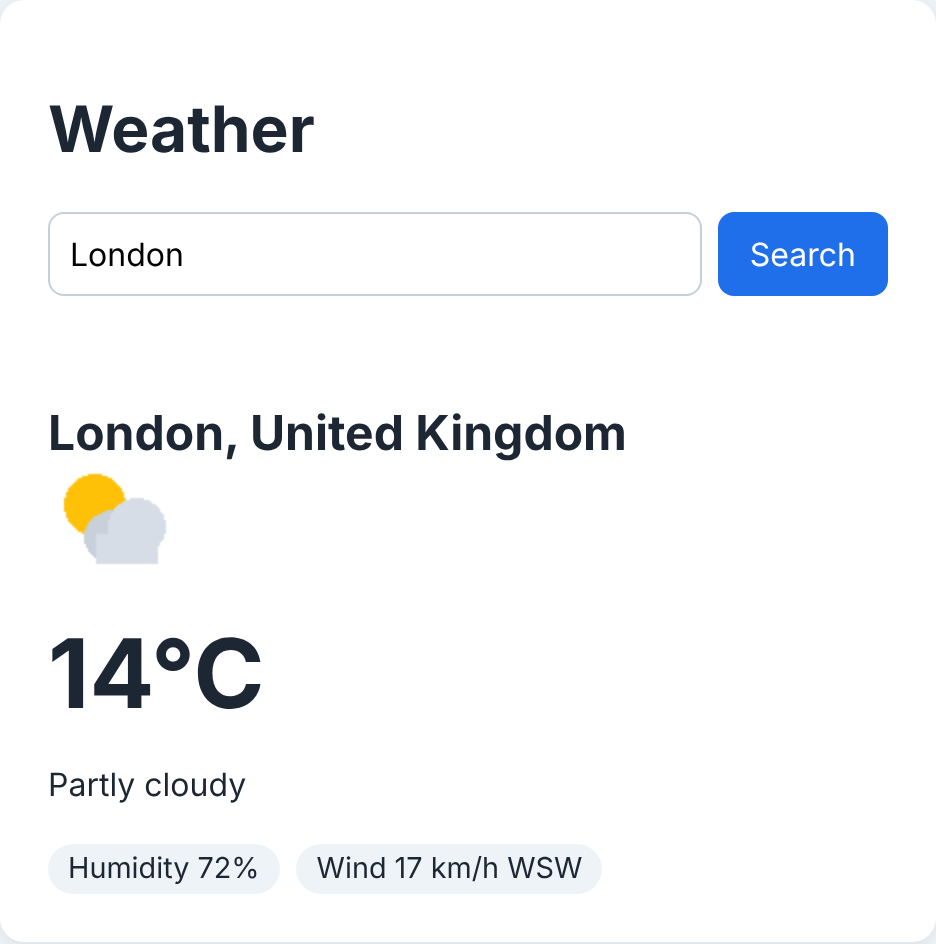
The HTML, line by line
HTML body
  <div class="app">
    <h1>Weather</h1>
    <form id="search-form">
      <input id="city-input" type="text" placeholder="Enter a city" required>
      <button type="submit">Search</button>
    </form>
    <p id="message"></p>
    <div id="result" hidden>
      <h2 id="city-name"></h2>
      <img id="weather-icon" alt="">
      <p class="temp" id="temperature"></p>
      <p id="description"></p>
      <span class="badge" id="humidity"></span>
      <span class="badge" id="wind"></span>
    </div>
</div>- <form id=”search-form”> wraps the input and button, so pressing Enter submits the search as well as clicking.
- required on the input stops an empty search before any JavaScript runs.
- <p id=”message”> is one place for both “Loading…” and error messages.
- <div id=”result” hidden> holds the weather display. The hidden attribute keeps it invisible until there is data to show.
- Every element the script fills in has an id: city-name, weather-icon, temperature, description, humidity, wind.
The <meta name=”viewport”> tag in the <head> makes the layout behave on phones.
The CSS, line by line
CSS (inside <style>)
    body { font-family: system-ui, sans-serif; background: #eef3f8; color: #1d2733; margin: 0; }
    .app { max-width: 420px; margin: 48px auto; padding: 24px; background: #fff; border-radius: 12px; box-shadow: 0 2px 8px rgba(0,0,0,.08); }
    form { display: flex; gap: 8px; }
    input { flex: 1; padding: 10px; border: 1px solid #c5d0dc; border-radius: 8px; font: inherit; }
    button { padding: 10px 16px; border: none; border-radius: 8px; background: #1f6feb; color: #fff; font: inherit; cursor: pointer; }
    #message { min-height: 1.4em; color: #5b6b7c; }
    #message.error { color: #c62828; }
    #result h2 { margin: 8px 0 0; }
    .temp { font-size: 3rem; font-weight: 700; margin: 8px 0; }
.badge { display: inline-block; padding: 4px 10px; margin: 4px 4px 0 0; border-radius: 999px; background: #eef3f8; font-size: .9rem; }- body sets a system font stack, so the app uses each device’s native font without loading anything.
- .app is the white card: a 420px max width, centered with margin: 48px auto, rounded corners and a soft shadow.
- form { display: flex } with input { flex: 1 } makes the input stretch and the button sit beside it.
- #message.error turns the message red only when the script adds the error class.
- .temp makes the temperature the biggest thing on screen, because that is what people look for first.
- .badge styles humidity and wind as small pills. The wind badge reads km/h, matching the units=m request. (Wind speed is never km/s; that would be faster than a rifle bullet.)
The JavaScript, line by line
JavaScript (inside <script>)
    // Demo only: this key is visible to anyone who opens the page source.
    // Before you publish, move the request behind a server proxy.
    const API_KEY = "YOUR_API_KEY";

    const form = document.getElementById("search-form");
    const message = document.getElementById("message");
    const result = document.getElementById("result");

    form.addEventListener("submit", async (event) => {
      event.preventDefault();
      const city = document.getElementById("city-input").value.trim();
      message.textContent = "Loading…";
      message.className = "";
      result.hidden = true;

      try {
        const url = `https://api.weatherstack.com/current?access_key=${API_KEY}&query=${encodeURIComponent(city)}&units=m`;
        const response = await fetch(url);
        const data = await response.json();

        if (data.error) {
          throw new Error(data.error.info);
        }

        document.getElementById("city-name").textContent = `${data.location.name}, ${data.location.country}`;
        document.getElementById("weather-icon").src = data.current.weather_icons[0];
        document.getElementById("weather-icon").alt = data.current.weather_descriptions[0];
        document.getElementById("temperature").textContent = `${data.current.temperature}°C`;
        document.getElementById("description").textContent = data.current.weather_descriptions[0];
        document.getElementById("humidity").textContent = `Humidity ${data.current.humidity}%`;
        document.getElementById("wind").textContent = `Wind ${data.current.wind_speed} km/h ${data.current.wind_dir}`;

        message.textContent = "";
        result.hidden = false;
      } catch (error) {
        message.textContent = `Could not load weather: ${error.message}`;
        message.className = "error";
      }
    });
Step by step:
- `const API_KEY` holds your key. Read the next section before you put this file anywhere public.
- `form.addEventListener(“submit”, …)` runs when the user searches. event.preventDefault() stops the browser from reloading the page.
- Reset the UI. Show “Loading…”, clear any red error styling, and hide the previous result.
- Build the URL. encodeURIComponent(city) makes names like “São Paulo” or “New York” safe to put in a URL. units=m asks for metric.
- `await fetch(url)` sends the request, and await response.json() parses the body.
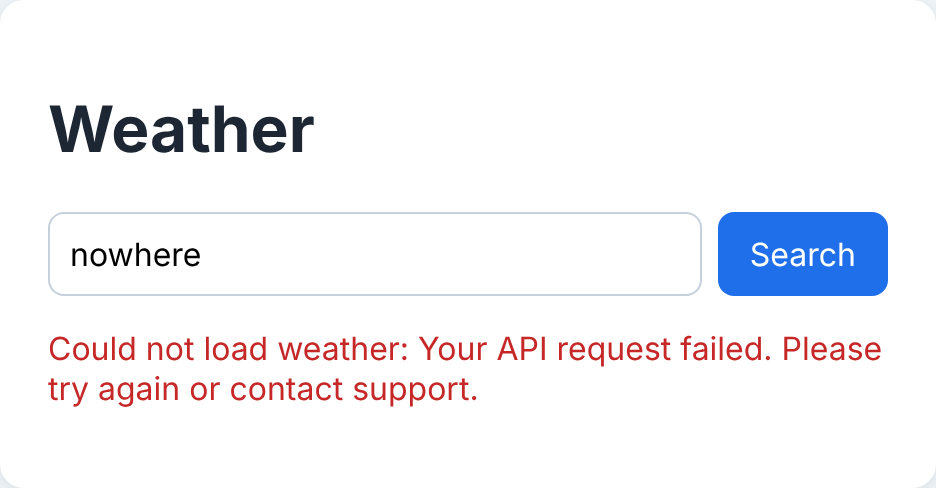
- Check `data.error`. Weatherstack reports problems such as a wrong key or an unknown city inside the JSON, with a readable info message. Throwing it sends us to the catch block.
- Fill in the page. Each line copies one field from the response into its element using textContent, which displays text safely. Weather icons come back as a URL, so the image just needs its src set.
- `catch (error)` shows any failure (network down, bad key, unknown city) as a red message instead of failing silently.
If the city cannot be found or the key is wrong, the same card shows the API’s message in red:
The response fields used, from a real-shaped response:
JSON response (trimmed)
{
  "location": {
    "name": "London",
    "country": "United Kingdom",
    "localtime": "2026-10-15 14:20"
  },
  "current": {
    "temperature": 14,
    "weather_icons": [
      "https://cdn.worldweatheronline.com/images/wsymbols01_png_64/wsymbol_0002_sunny_intervals.png"
    ],
    "weather_descriptions": ["Partly cloudy"],
    "wind_speed": 17,
    "wind_dir": "WSW",
    "humidity": 72,
    "feelslike": 13
  }
}
The documentation lists every field, including pressure, UV index, visibility and cloud cover if you want to show more.
About your API key
In this one-file version, the key sits in your JavaScript. Anyone who opens the page and views the source, or watches the network tab, can copy it and spend your monthly requests. That is acceptable while the file lives on your own computer for learning. It is not acceptable once the page is online, including on GitHub Pages or a public repo.
Before you publish, move the API call to a server. A small proxy receives the city from your page, adds the key on the server side, and returns the weather. Our full tutorial walks through a 40-line Node.js proxy that does exactly this, with no npm packages. Also keep the key out of version control: if you push this file to GitHub, replace the key with a placeholder first.
Three ways to extend it
1. Show a forecast
Swap the endpoint to forecast and add &forecast_days=3, then loop over data.forecast (an object keyed by date) to show each day’s maxtemp and mintemp. The forecast endpoint needs the Professional plan or higher, so on the free plan you will see an error message instead. That is a good test of your error handling. The full tutorial has a complete forecast example.
2. Use your own icons
The response includes a numeric weather_code (116 is partly cloudy, for example). Map codes to your own icon set or emoji for a more distinctive design:
JavaScript
const ICONS = { 113: "☀️", 116: "⛅", 119: "☁️", 296: "🌧️", 338: "❄️" };
const icon = ICONS[data.current.weather_code] || "🌡️";
document.getElementById("description").textContent = `${icon} ${data.current.weather_descriptions[0]}`
3. Remember the last city
Save the city in localStorage after a successful search, and load it when the page opens:
JavaScript
// After a successful search:
localStorage.setItem("lastCity", city);

// At the bottom of the script:
const lastCity = localStorage.getItem("lastCity");
if (lastCity) {
  document.getElementById("city-input").value = lastCity;
  form.requestSubmit();
}
That last one also saves you requests: returning visitors see their weather without typing anything, and you only fetch once per visit.
FAQs
How do I build a weather app with just HTML and JavaScript?
Create an HTML form for the city, then use JavaScript’s fetch to call a weather API such as Weatherstack and write the returned temperature, description, humidity and wind into the page. Everything fits in one HTML file.
Do I need Node.js to use a weather API?
No. A browser can call a weather API directly with fetch, which is fine for learning. For a public app, a small server such as a Node.js proxy is recommended so your API key stays private.
Why does my fetch call return 401?
An authentication error almost always means the API key is missing, mistyped or still set to the placeholder. With Weatherstack, also check the response body: errors arrive as data.error with a code, such as 101 for a missing or invalid key.
Is a free weather API enough for a student project?
Usually, yes. Weatherstack’s free plan includes 100 requests per month of current weather, enough to build and demo a project. Forecast and historical data need a paid plan.
| Get it running now. Get a free Weatherstack API key (100 requests a month), paste it into the file, and open it in your browser. |